
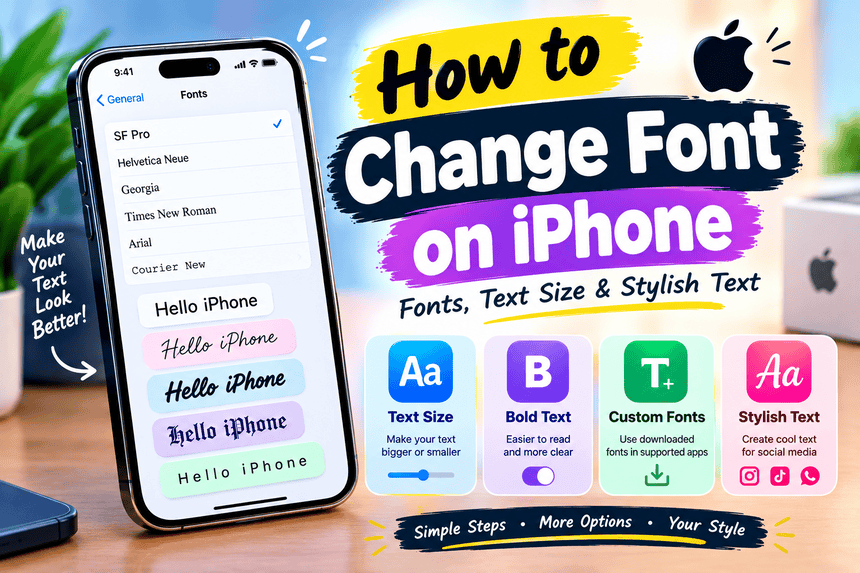
Have you ever looked at your iPhone and thought, “I wish I could change this font”? You are not alone. Many iPhone users search for how to change font on iPhone because they want a more personalized appearance, easier-to-read text, or stylish fonts for Instagram, TikTok, WhatsApp, Notes, and other apps.

The good news is that iPhone gives you several ways to customize how text looks. However, there is an important limitation: iOS does not offer a simple system-wide option to replace the default iPhone interface font with any font you want.
Instead, Apple provides controls for text size, bold text, Display Zoom, accessibility settings, downloadable fonts, and app-specific font formatting. You can also create stylish Unicode text that works in many social and messaging apps.
This guide explains the practical options so you can choose the method that actually matches what you want to achieve.
Can You Change the Default Font on an iPhone?
The short answer is not completely.
Apple controls the main system typography used throughout iOS. You cannot simply open Settings, select a downloaded font, and make every part of the iPhone interface use that font.
What you can change includes:
- Text size
- Boldness of text
- Display Zoom
- Fonts inside compatible apps
- Fonts in documents
- Text styles created with Unicode characters
- Certain reading and accessibility preferences
This distinction is important because many websites and videos suggest that installing a font automatically changes the entire iPhone interface. That is not how Apple’s current font system works.
Apple explains that downloaded fonts can be installed on iPhone and used in documents created on the device. Installed fonts can also be managed from Settings > General > Fonts.
How to Change Font Size on iPhone ?
If your main goal is to make text larger or smaller, you do not need a font app.
Apple provides a built-in text-size control.
Method 1: Change Text Size
Depending on your iOS version, open:
Settings > Display & Brightness > Text Size
Move the slider to the left to make text smaller or to the right to make it larger.
This affects apps that support Apple’s Dynamic Type system. Mail, Notes, Contacts, Calendar, and other compatible applications can respond to the system text-size preference.
If you frequently struggle to read small text, this is usually the best solution because it is built directly into iOS.
Method 2: Make Text Even Larger
For users who need larger text, Apple provides additional accessibility controls.
Go to:
Settings > Accessibility > Display & Text Size > Larger Text
You can then adjust the text-size slider. Apple also provides Larger Accessibility Sizes for additional size options.
Keep in mind that extremely large text can cause buttons or other interface elements to become harder to use in some apps. Apple specifically recommends adjusting the size according to your needs.
How to Make the iPhone Font Bold ?
If you don’t necessarily want a different typeface but want text to stand out more, try Bold Text.
Depending on your iOS version, look under:
Settings > Accessibility > Display & Text Size > Bold Text
On newer iOS versions, some display controls may also be available under the Display & Brightness settings.
Bold text can make menus, messages, and other interface elements easier to read without requiring you to install anything.
For everyday use, this is one of the simplest font-related changes available on an iPhone.
How to Change the Font Using Display Zoom ?
Sometimes the problem isn’t really the font itself. You may simply want the entire interface to appear larger.
That’s where Display Zoom can help.
Go to:
Settings > Display & Brightness > Display Zoom
Choose the larger display option and follow the on-screen instructions.
Display Zoom increases the apparent size of interface elements such as icons, buttons, and text. It is different from simply increasing the text size.
Text Size vs. Display Zoom
| Feature | Text Size | Display Zoom |
|---|---|---|
| Changes text size | Yes | Yes |
| Enlarges interface elements | Limited | Yes |
| Requires a font app | No | No |
| Useful for readability | Excellent | Excellent |
| Changes typeface | No | No |
If you like the existing iPhone font but want everything to feel bigger, Display Zoom may be the better choice.
How to Install Custom Fonts on iPhone ?
This is where things become more interesting.
Apple allows users to download font applications from the App Store and install fonts on iPhone. According to Apple’s documentation, once a font app has been downloaded, you can open the app to install fonts. Installed fonts can then be managed through:
Settings > General > Fonts
However, installing a font does not mean that your entire iPhone interface will suddenly switch to that font.
The font becomes available to compatible applications that support custom fonts.
This is particularly useful for document creation, graphic design, presentations, and other creative work.
How to Change Fonts in Apple Pages ?
Apple’s Pages app provides much more direct control over fonts.
If you are creating a document in Pages on your iPhone:
- Open your document.
- Select the text you want to change.
- Tap the Format button.
- Tap Font.
- Select the font you want.
- Adjust the size, weight, or other formatting options if available.
Apple confirms that Pages allows users to change the font, text size, color, and formatting such as bold, italic, underline, and strikethrough.
This is a good example of why installed fonts are useful: they work inside applications that are designed to support them rather than replacing the entire iOS interface.
How to Get Stylish Fonts on iPhone ?
If your goal is not to change the iPhone’s system font but to create stylish text for Instagram, TikTok, WhatsApp, Facebook, Discord, or gaming profiles, there is another option.
You can use a Unicode stylish-text generator.
Instead of installing a traditional font file, these tools convert normal letters into different Unicode characters that visually resemble bold, cursive, decorative, gothic, aesthetic, or other styles.
For example, ordinary text can be transformed into styles such as:
- 𝐁𝐨𝐥𝐝
- 𝘐𝘵𝘢𝘭𝘪𝘤
- 𝑪𝒖𝒓𝒔𝒊𝒗𝒆
- 𝕲𝖔𝖙𝖍𝖎𝖈
- ⓒⓘⓡⓒⓛⓔⓓ
- Wide Text
These are not technically replacements for the iPhone’s system font. They are different Unicode characters that many apps can display.
For people who want stylish Instagram bios, captions, usernames, gaming names, or social-media posts, this approach can be much more practical than installing a traditional font.
What Is the Best Method for You?
The right solution depends on what you mean by “change font.”
| Your Goal | Best Option |
|---|---|
| Make iPhone text bigger | Text Size |
| Make text easier to read | Larger Text |
| Make text thicker | Bold Text |
| Make the whole interface larger | Display Zoom |
| Use custom fonts in documents | Install fonts |
| Change fonts in Pages | Pages formatting tools |
| Create stylish Instagram text | Unicode font generator |
| Create decorative usernames | Unicode stylish text |
| Replace the entire iOS system font | Not officially supported |
This is perhaps the most useful takeaway from the entire topic: changing font size and changing font family are two different things.
How to Change Font in Individual Apps ?
Some applications have their own typography controls.
For example, a writing, design, presentation, or editing application may allow you to select a specific font independently from your iPhone’s system settings.
This means you should first check the app’s formatting menu before installing anything.
Look for options such as:
- Font
- Typeface
- Text Style
- Typography
- Format
- Text Settings
If the application does not support custom fonts, installing a font on your iPhone may not make that font available inside the app.
A Useful iPhone Trick: Change Text Size From Control Center
On supported iOS versions, you can also adjust text size more quickly through Control Center.
Open Control Center and look for the Text Size control.
If it isn’t visible, you can add the Text Size control through the Control Center customization options.
This can be particularly useful if you want different text sizes depending on what you are doing.
For example, you might prefer normal text during everyday use but temporarily increase the size while reading a long article.
Apple’s current iPhone documentation also describes using Text Size controls while inside supported apps.
Can You Change the Font in iPhone Messages?
There is an important difference between changing the actual font and styling the text you send.
The Messages app does not provide a general setting that lets you select any font and permanently change all message typography.
However, you can use supported text formatting features where available or create stylish Unicode text using a compatible text generator.
This can be useful when creating:
- Birthday messages
- Instagram captions
- Personal bios
- WhatsApp statuses
- TikTok descriptions
- Gaming usernames
- Social-media announcements
Remember that Unicode-style text may not look identical on every device or application. Some characters can appear differently depending on the platform’s font support.
Why Some Stylish Fonts Don’t Work Everywhere ?
You may create a beautiful-looking Unicode style and discover that another person sees boxes, unusual characters, or a slightly different design.
That’s because Unicode characters are interpreted by the receiving device and application.
Before using a decorative style professionally, test it in the platform where you intend to publish it.
For important information, avoid replacing every character with unusual symbols. A highly decorative font may look attractive but can reduce readability and accessibility.
A good rule is:
Use stylish text for emphasis, not for everything.
Frequently Asked Questions
Can I completely change the iPhone system font?
No. iOS does not provide a standard setting that lets you replace the system typeface with any custom font you choose.
Can I make the iPhone font bigger?
Yes. Go to Settings > Display & Brightness > Text Size or use Accessibility > Display & Text Size > Larger Text for additional options.
Can I make the iPhone font bold?
Yes. You can enable Bold Text through Apple’s display and accessibility settings.
Can I install custom fonts on iPhone?
Yes. Apple supports downloading font apps from the App Store and managing installed fonts through Settings > General > Fonts.
Can I use custom fonts in Pages?
Yes. Pages on iPhone allows you to select a font and change text formatting.
Can I change Instagram’s font on iPhone?
You generally cannot replace Instagram’s entire interface font, but you can use Unicode-style text generators to create decorative text for supported profile fields, captions, and other areas.
Why doesn’t my downloaded font appear everywhere?
Custom fonts only work in applications that support them. Installing a font does not make it universally available throughout iOS.
Final Thoughts
If you searched for how to change font on iPhone, the most important thing to understand is that there isn’t one single font switch that changes everything.
Instead, iPhone offers several different levels of customization.
Want bigger text? Change Text Size. Need better readability? Try Larger Text or Bold Text. Want a larger overall interface? Use Display Zoom. Need a custom typeface for documents? Install a font and use a compatible application such as Pages. Want eye-catching social-media text? A Unicode stylish-text generator may be the simplest solution.
This approach gives you much more control without unnecessarily modifying your iPhone or relying on questionable system-level tools.
If you’re experimenting with stylish text, try a few different styles and prioritize readability before choosing one for your profile or content.
Ready to create stylish text on your iPhone? Try a stylish font generator, experiment with different Unicode styles, and find a design that matches your personality.